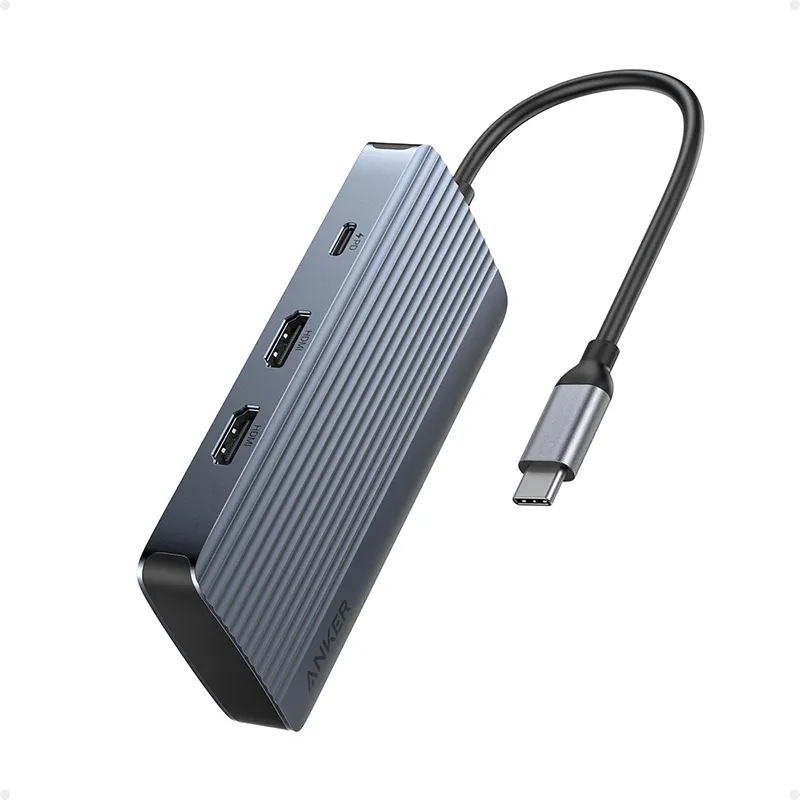
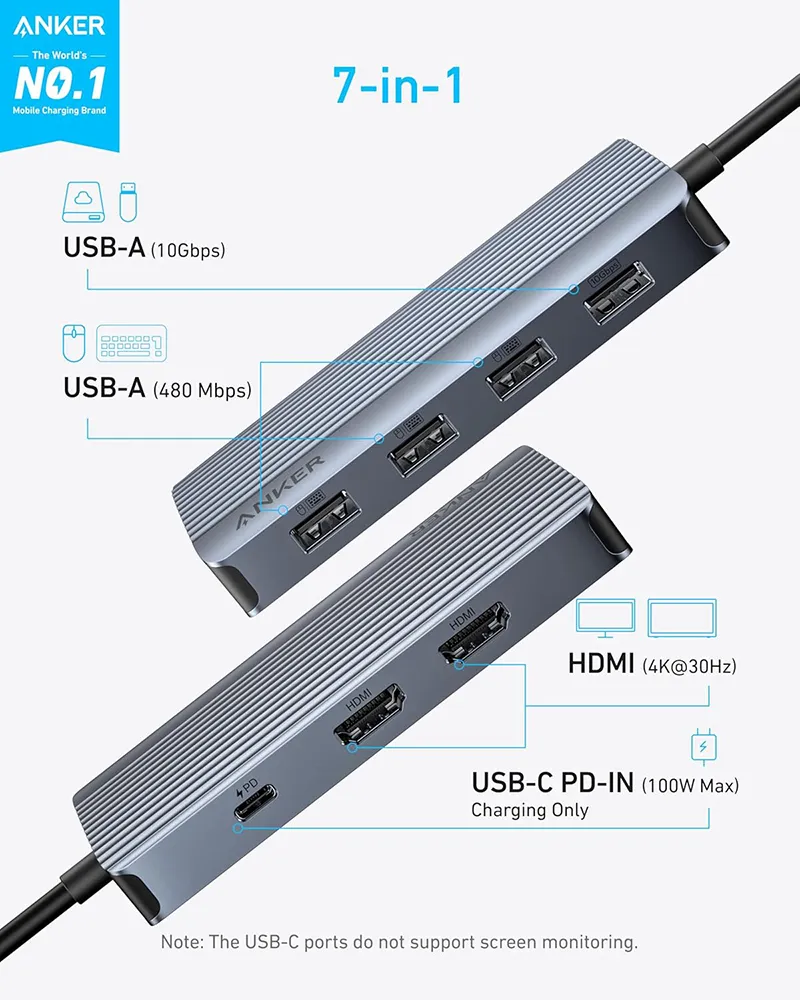
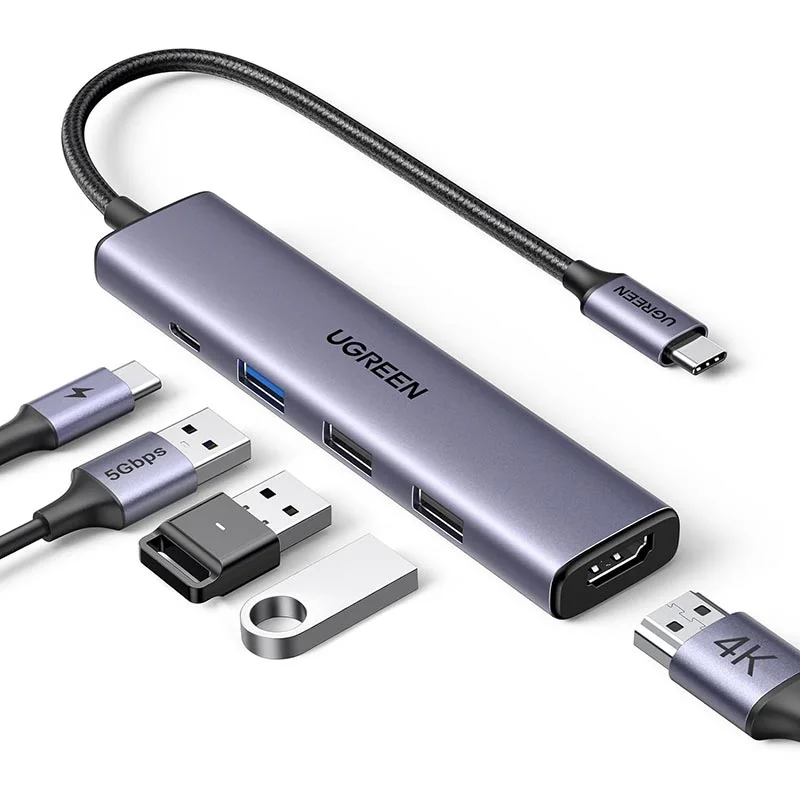
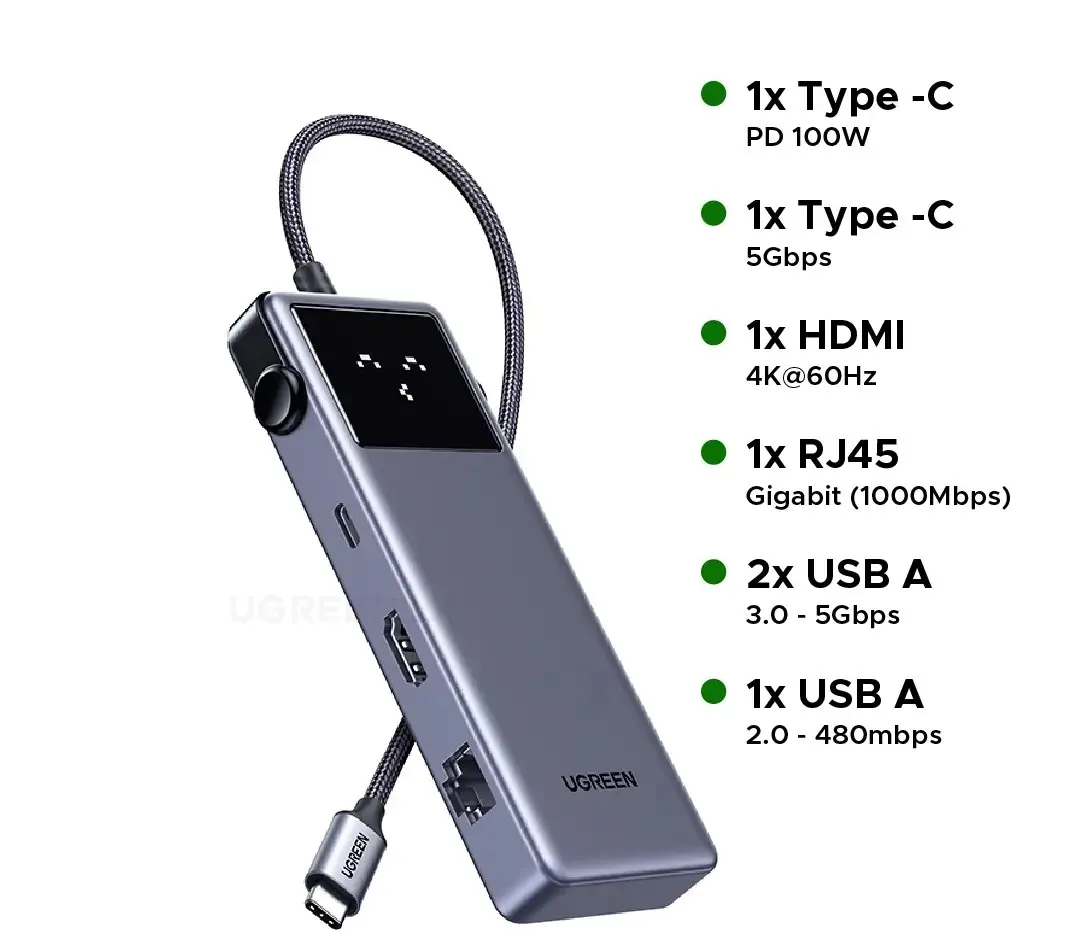
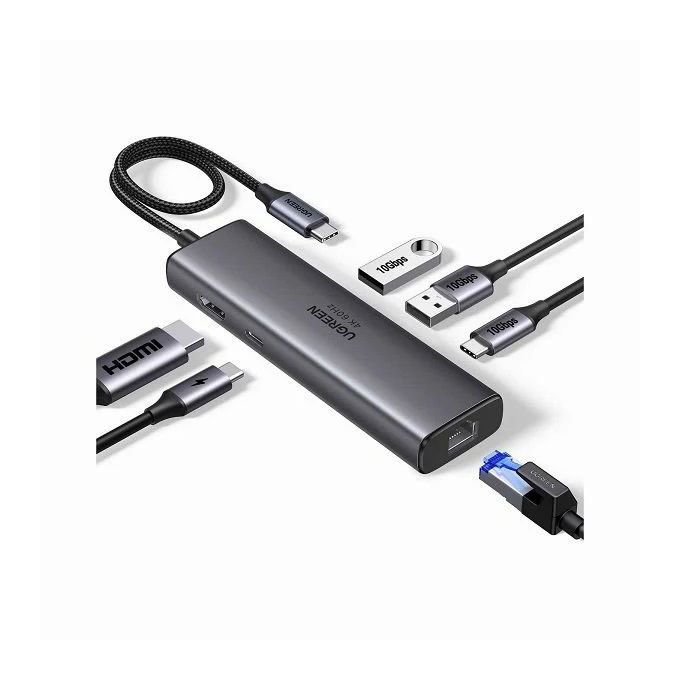
- Powerful 7-in-1 Hub: Designed for the multitasker, this 7-in-1 USB-C hub features everything from ultra-fast data transfer to high-definition video output.
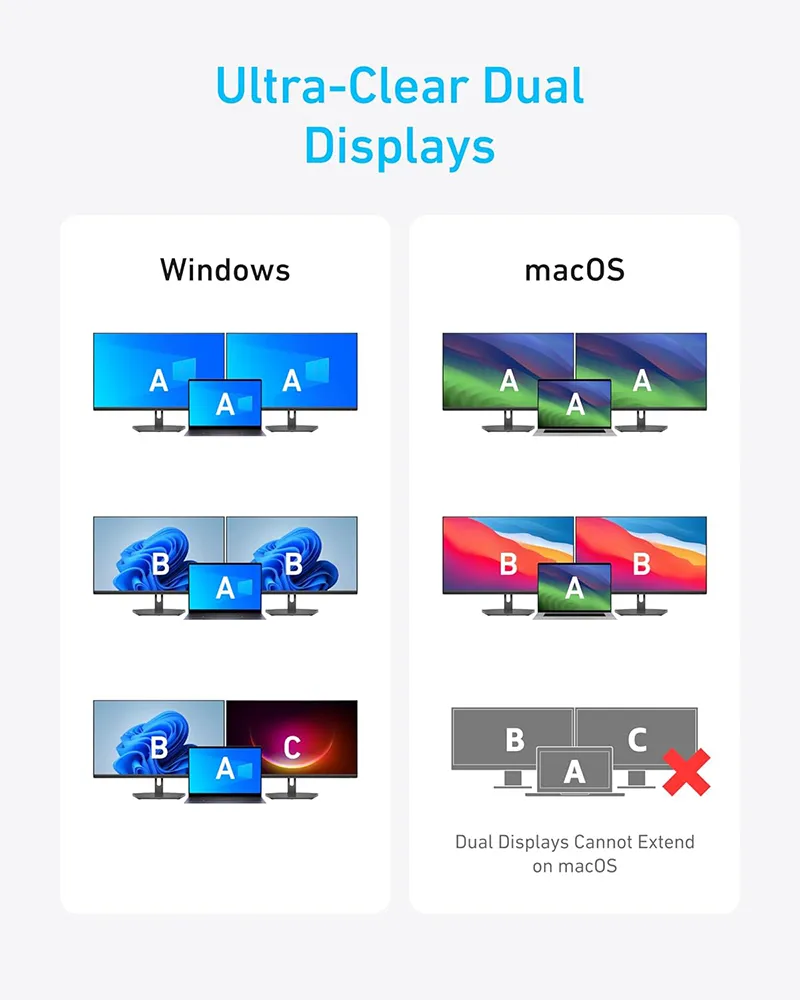
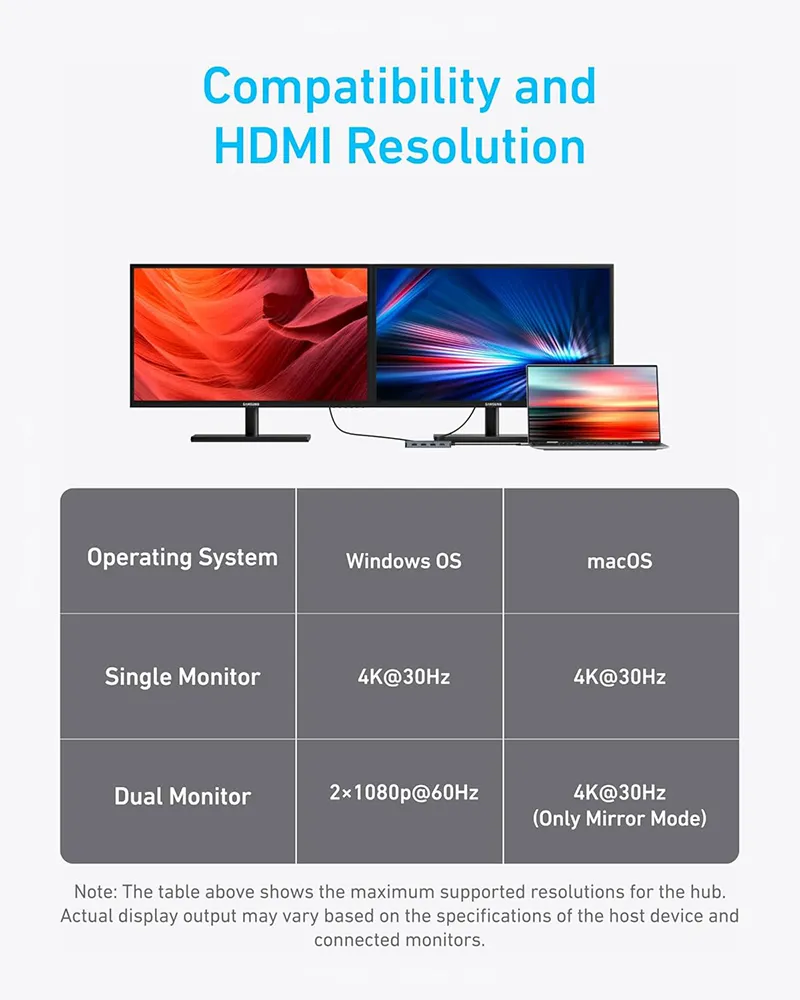
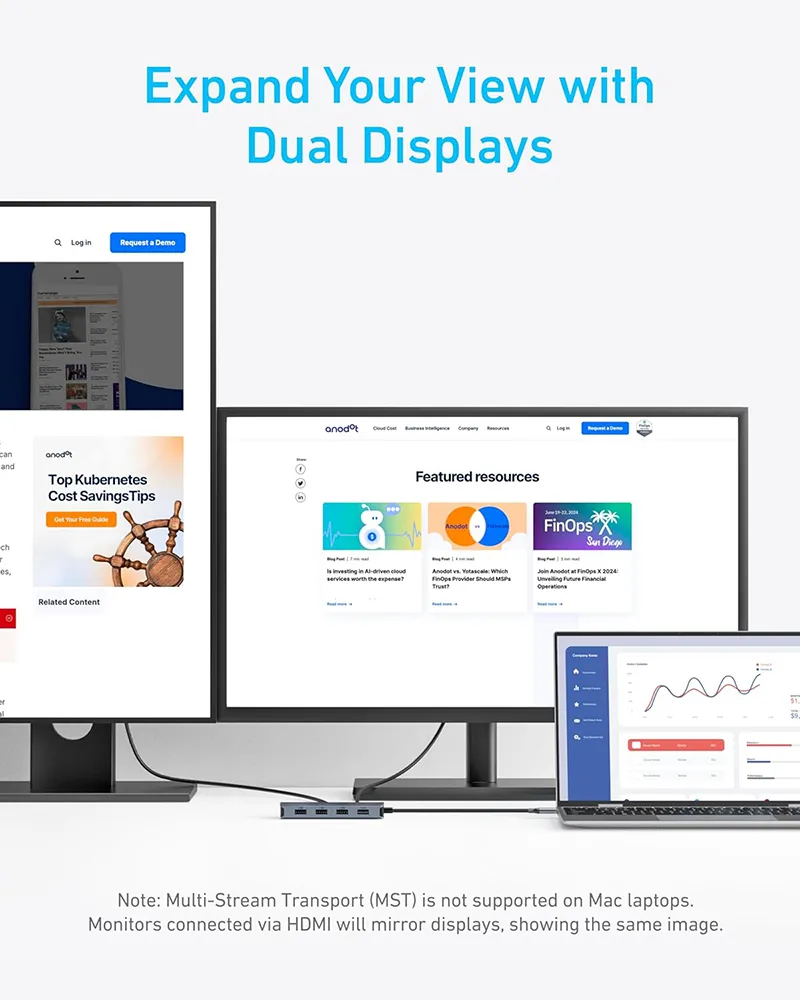
- See More, Do More: Easily extend your workspace across two screens with 1080p@60Hz resolution, ideal for enhancing productivity and multitasking capabilities.
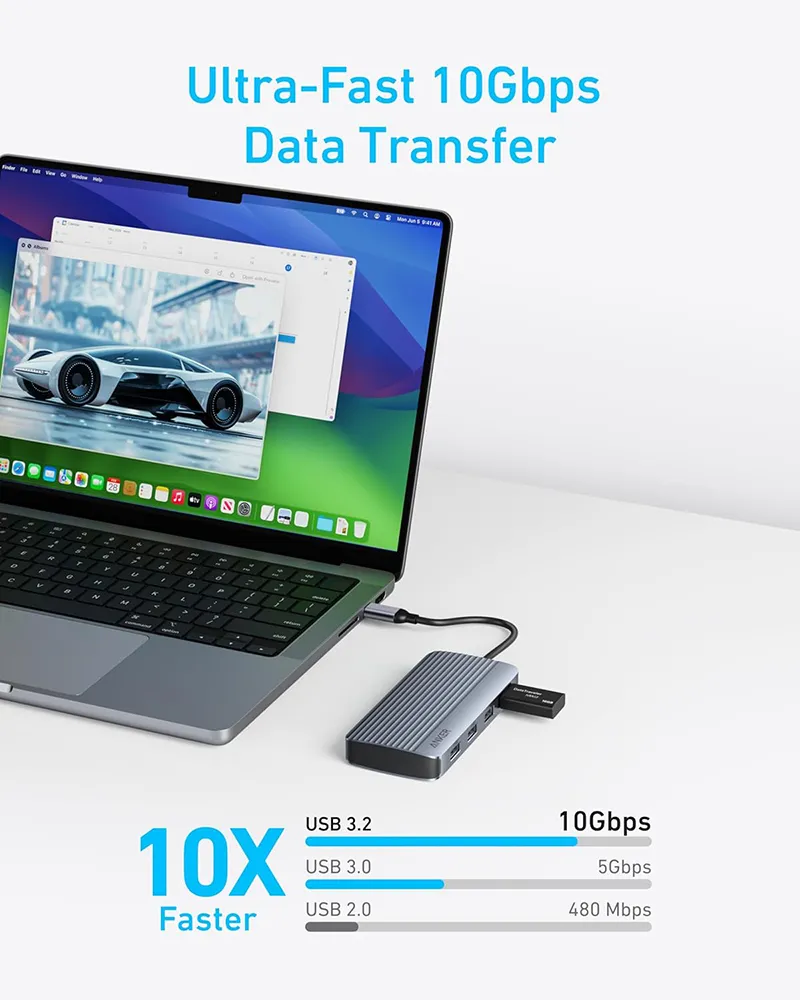
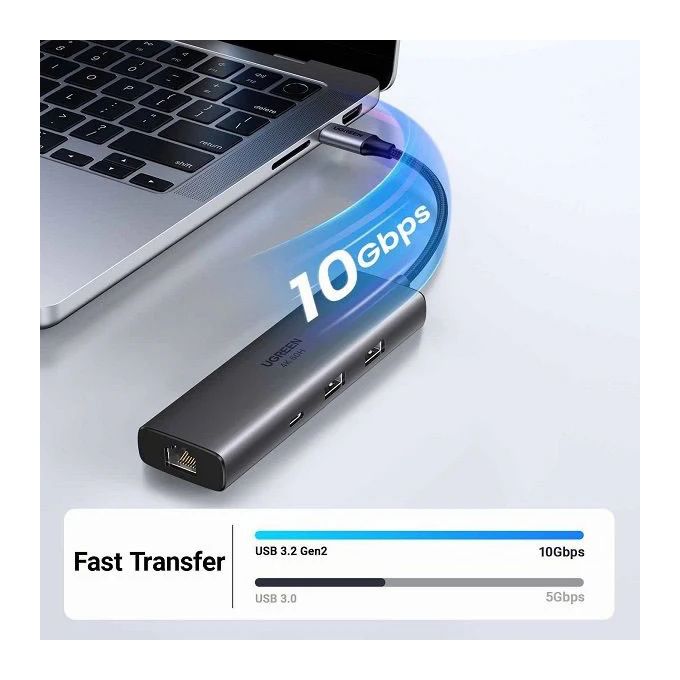
- Blazing-Fast 10Gbps Data Transfer: Dramatically reduce transfer times with a 10Gbps port that quickly moves large files and boosts work productivity.
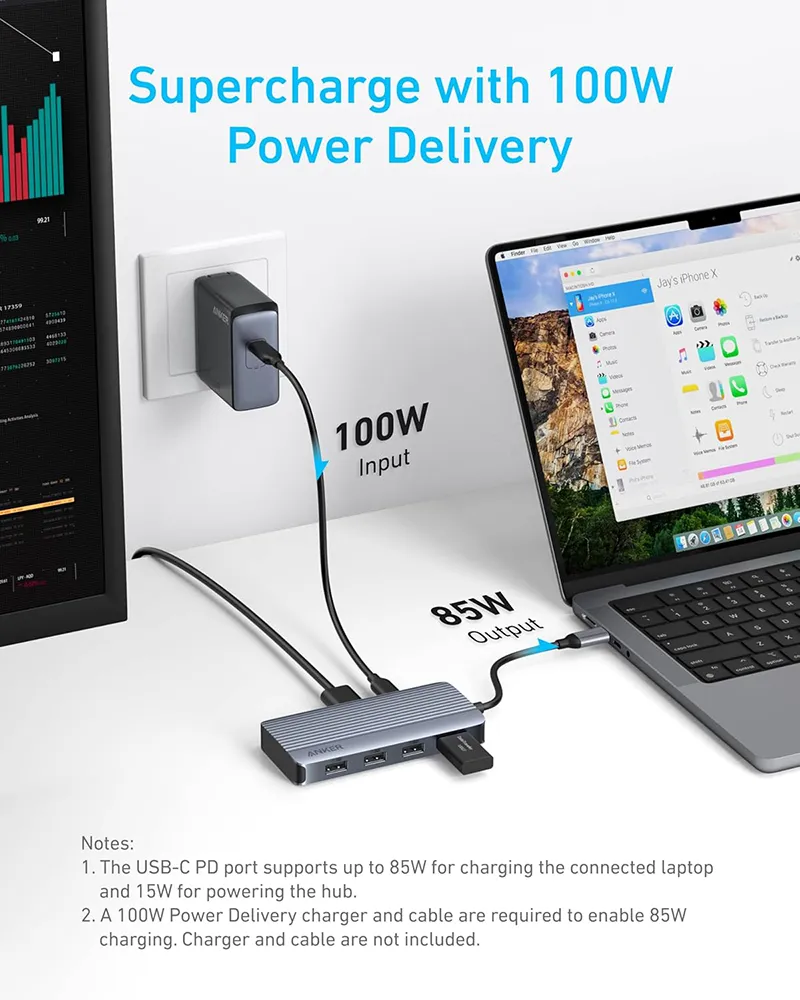
- 100W Fast Charging: Cut down on charging time with the powerful 100W input and 85W output, suitable for all your high-demand technology. (Note: Wall charger not included.)
- Compatibility: Supports USB-C, USB4, and Thunderbolt connections. Compatible with MacBook (macOS 12 and newer), Windows 10 and 11, ChromeOS, and laptops equipped with DP Alt Mode and Power Delivery. Note: This device is not compatible with Linux.
Product Details
• Model Number: A8374 – Seamless Dual Monitors and Multiple Connections
• Dual Screens & Multiple Ports: Take control of your desk with dual monitor support and seven connectivity ports, all from one compact device.
• Mirror or Extend Your Screens: Choose between mirror and extended display modes to optimize your viewing area and productivity. (Note: macOS supports only mirror mode.)
• Durable, Metallic-Like Finish: Features a high-quality aluminum body with an elegant metallic-like finish.
• Safe and Compatible: Built with short-circuit and overvoltage protection; compatible with major operating systems and devices.
Notes
1. The USB-C and USB-A ports do not support charging peripheral devices.
2. This hub is not compatible with Nintendo Switch or SuperDrive.
3. Maximum resolution for extended displays on Windows laptops depends on the laptop’s graphics card.
4. MST is not supported on Mac laptops. HDMI-connected monitors will mirror the display.
5. To fully optimize display capabilities on iPad Pro (M1), connect a USB 3.0 drive to the 10Gbps USB-A port.
Q&A
Q: Why is there a big difference in resolution between two monitors when Windows is dual-projected?
A: This happens when one monitor consumes too much bandwidth, leaving insufficient bandwidth for the second monitor. To balance resolutions, adjust each monitor’s settings:
Step 1: Reduce High-Resolution Display
1. Go to System Settings > Display > Advanced Display.
2. Under Select a display, choose the high-resolution screen (e.g., Display 2).
3. Click Display adapter properties for [display].
4. Select List All Modes, choose a lower resolution (e.g., 1920×1080 at 60Hz), then apply.
Step 2: Improve Low-Resolution Display
5. Repeat the steps for the other monitor.
6. Under Select a display, choose the lower-resolution screen.
7. Adjust to a higher resolution using the same process, based on available bandwidth.
Specs Table
- Model: A8374
- HDMI Ports: 2 × HDMI 1.4
- Single Display: Up to 4K @ 30Hz (per port)
- Dual Display: Up to 1080p @ 60Hz (both ports simultaneously)
- USB-A High Speed: 1 × USB-A 3.2 Gen 2 (10Gbps)
- USB-A Standard: 3 × USB-A 2.0 (480Mbps)
- USB-C PD Port: 100W input / 85W pass-through to host
- Host Connection: USB-C (USB4 & Thunderbolt compatible)
- Finish: Aluminum with metallic-like finish
- Compatible OS: macOS 12+, Windows 10/11, ChromeOS
- Not Compatible: Linux, Nintendo Switch, SuperDrive
What’s in the Box:
• Anker USB-C Hub (7-in-1, Dual Display) – A8374AA1 – Gray
• Welcome guide